Using Zap AI
In the Zap AI chat panel, you can talk to an AI agent to get context-aware help, ask questions about your data, and make changes to your reports.
Agents
When you send a message in the chat panel, an agent responds. Every agent can answer questions about your data and about using Data Hub, but they differ in how much work they can do for you.
Zap Assistant
Zap Assistant makes quick changes to your reports when you ask, such as adding a filter or changing a chart type. It makes at most one change per message. Answering questions, looking at your data, and searching the documentation aren't limited.
Zap Analyst
Coming soon. Zap Analyst will take on larger tasks, such as building a complete report from a single request.
Open the Zap AI chat panel
To open the Zap AI chat panel, click the AI icon at the top-right of the page, or press Ctrl + /.

A number on the AI icon indicates that you've got unread messages.
The Zap AI chat panel
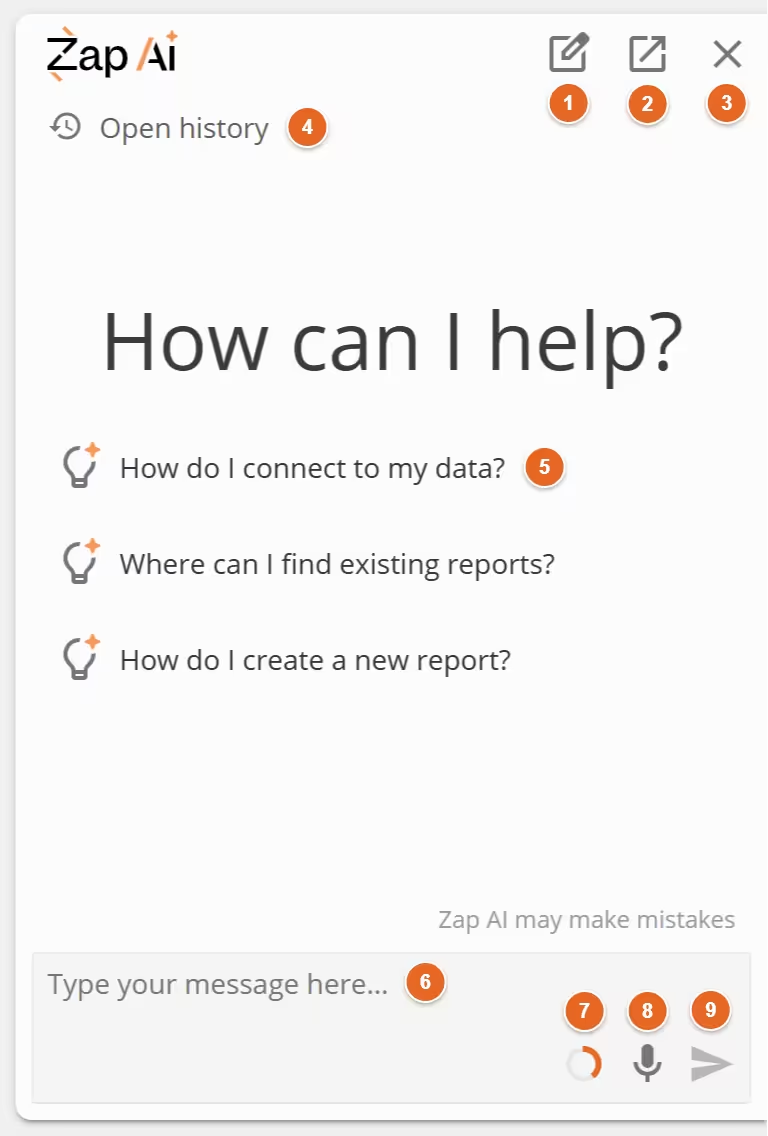
The Zap AI chat panel opens on the right edge of the screen, out of the way of your main work area. You can resize it by dragging the left edge, or reset its size by double-clicking the left edge.
-
New chat - Starts a new conversation. Shortcut: Ctrl + Shift + /.
-
Pop out - Moves the chat panel into a separate always-on-top window. Will change to a Return to page button while in this window.
-
Close - Closes the chat panel. You can reopen it using the AI icon or keyboard shortcut: Ctrl + /.
-
Open history - Opens your recent conversation history.
-
Suggestions - When you start a new conversation, this area shows some example questions you can ask. Click a suggestion to ask it. Once the conversation has started, this area shows the conversation.
-
Message box - Type your message here. Press Enter to send, or Shift + Enter to add a new line.
-
Usage indicator - Shows how much of your weekly Zap AI budget you've used. Hover over the indicator for more detail.
-
Start dictation - Click to start voice input. Click again or send your message to stop. Shortcut: Ctrl + M.
-
Send - Sends your message. Will change to a Cancel button while the agent is generating a response, allowing you to cancel the current request.

The conversation
Once the conversation has started, the central area of the chat panel shows your messages and the agent's responses. You can scroll through previous messages, and click on links to open models, charts, and other resources mentioned by the agent.
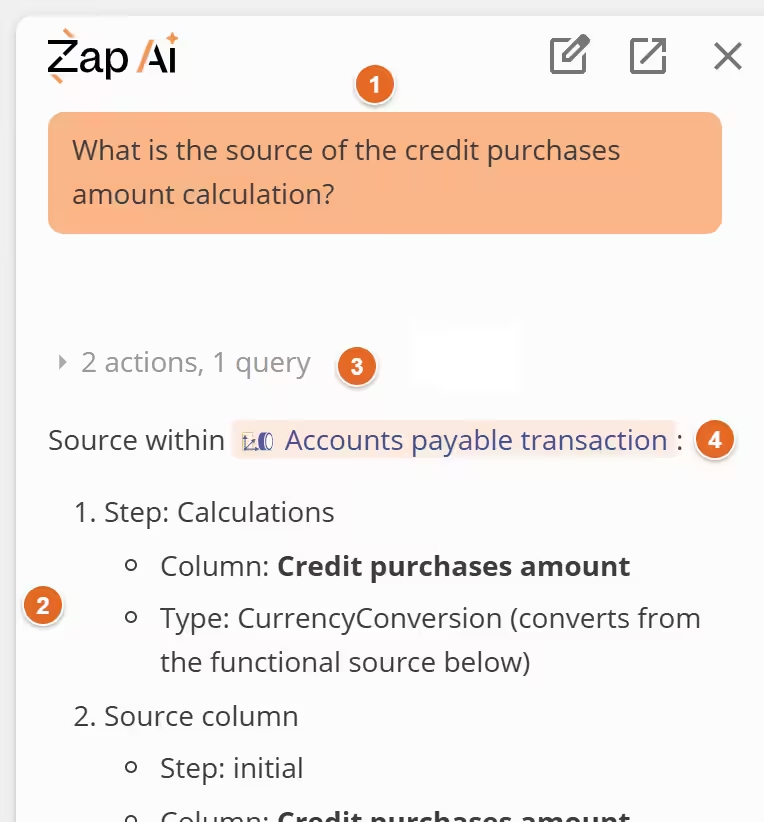
- User message - Your message to the agent.
- Agent response - The agent's response.
- Agent actions - Indicates what actions the agent has taken, such as inspecting a model or searching the documentation. Can be expanded for more detail.
- Resource link - Click to open the mentioned resource. If the link points to cells in a report, the report opens with those cells selected.
Approve changes
The agent asks before it changes a report. Read the description of the change, then:
- Click Allow to let the agent make the change.
- Click Skip to continue without making the change.
- Click the drop down arrow next to Allow, then click Allow for rest of conversation to let the agent make changes without asking for the rest of the conversation.

Copy, edit, and rate messages
Hover over a message to see more options:
- On your own messages, you can copy the message, edit it, or retry it to get a new response. You can also press Up in an empty message box to edit your last message.
- On the agent's responses, you can copy the response, or mark it as a Good response or Bad response. Your ratings help us improve Zap AI.
Conversation history
Zap AI saves your conversations so you can come back to them later. Starting a new chat or reloading Data Hub doesn't lose your previous conversations.
To see your past conversations, click Open history at the top of the chat panel. If you're in a conversation, click the back arrow instead. Click a conversation to open it.
Conversations are listed with the most recently updated first. A dot next to a conversation means it has replies you haven't read yet, so you can keep working in another conversation while the agent is responding.
To manage a conversation, hover over it and click the menu, or right-click it:
- Pin - Keeps the conversation at the top of the list, under Pinned. Click Pin again to unpin it.
- Rename - Changes the conversation's name. You can also rename the open conversation by hovering over its name at the top of the panel and clicking the edit icon.
Data access
In order to provide context-aware help, Zap AI needs to inspect the contents of your open resource tabs and available reports. Since this may involve sensitive data, you need to explicitly grant permission for Zap AI to access your data.
When you first open the chat panel, you'll see a prompt to enable data access.

Click Allow access to allow Zap AI to inspect open resource tabs and available reports. Note that only administrators can grant data access for an organization; other users will need to ask their administrator.
After allowing access, the prompt will change to indicate that Zap AI has access to your data. You can revoke access by clicking Disable access.
If Zap AI stops working with your data after you've allowed access, you may have hit a usage limit. See Credits and usage limits.
Credits and usage limits
Zap AI usage is free during the initial release period.
Zap AI usage is measured in credits. If you hit one of these limits, Zap AI can still answer questions about using Data Hub, but will no longer work with your data:
- You're over budget - You've used your personal weekly budget, which your administrators set on the AI usage page. Zap AI will work with your data again when your weekly usage resets. Administrators can adjust your weekly budget or allow you to exceed it if necessary.
- Your organization is over budget - Your organization has used its weekly budget. Zap AI will work with your data again when the organization's usage resets or when an administrator increases the budget.
- Out of credits - Your organization has used all of its credits. Zap AI will work with your data again once your credits are back above zero, for example when your organization's weekly credits reset.
An administrator can also buy additional credits to restore access sooner. If you aren't an administrator, ask one to purchase more. See Zap AI credits.
To check how close you are to your weekly budget, hover over the usage indicator in the message box. It shows how much of your Weekly usage you've used, and when it resets.
Configure analysis reports
Zap AI can work with the report you have open. To help your agent to answer questions about your data without a report open, use the options in the report's Home design panel.

-
Enable for AI - Lets the agent find and use this report to answer questions about your data, even when the report isn't open. Requires data access.
-
Change AI description - Opens the AI description editor. Use the AI description to describe the purpose of the report more specifically. This helps the agent give more relevant and accurate responses when referencing the report.