The Billing page
On the Billing page, administrators can buy Zap AI credits, and see your organization's purchases and invoices.
To open the Billing page, click Settings > AI usage, then click Purchase credits next to Additional credits remaining. The Billing page opens in a new tab.
Zap AI usage is free during the initial release period.
Only administrators can open the Billing page.
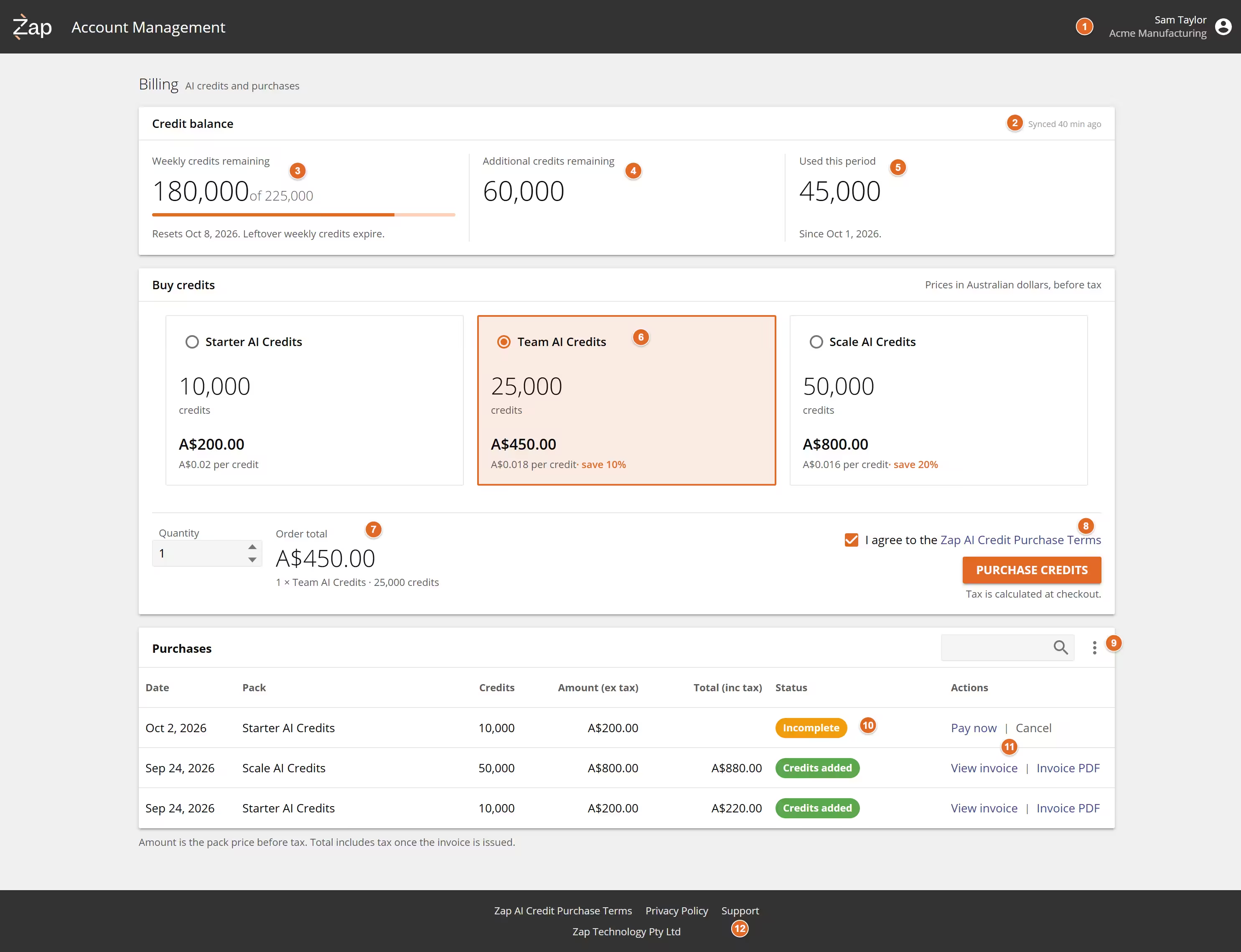
The credit packs and prices shown are examples only. The Billing page shows the packs and prices available to your organization.
-
Account menu - Your name and organization. To sign out of the Billing page, click the menu, then click Sign out.
-
Synced - When Data Hub last reported your organization's usage.
-
Weekly credits remaining - The weekly credits left, out of the weekly total, and when they reset.
-
Additional credits remaining - The additional credits left. A negative number shows how many credits Zap AI used beyond what your organization had left. See Negative credit balance.
-
Used this period - The credits used since the last reset.
-
Credit packs - The packs you can buy, priced in your organization's billing currency before tax.
-
Quantity and Order total - How many of the selected pack to buy, and the total before tax.
-
Purchase credits - Opens the payment provider's checkout page, once you've read and checked the I agree to the Zap AI Credit Purchase Terms checkbox. See how to buy Zap AI credits.
-
Purchases menu - Click Download all invoices to download every invoice at once.
-
Status - The status of each purchase. See Purchase statuses.
-
Actions - Pay now and Cancel for your own incomplete purchases, and View invoice and Invoice PDF for paid purchases.
-
Footer - Links to the Zap AI Credit Purchase Terms, the Privacy Policy, and Zap Support.
Currency
Prices on the Billing page are shown in your organization's billing currency. If this is incorrect, contact Zap Support.
Tax
Prices on the Billing page are shown before tax, such as GST, VAT, or sales tax. The payment provider calculates tax at checkout, based on your billing address.
Zap AI credits are sold to businesses, so checkout asks for your business's billing address. If the payment provider collects tax numbers in your country, checkout also asks for your business's tax number, which is shown on your invoice. If your business doesn't have a tax number, contact Zap Support.
Purchases
The Purchases section of the Billing page lists every Zap AI credit purchase your organization has started. Amount (ex tax) is the pack price before tax. Total (inc tax) is filled in once the invoice is issued.
Purchase statuses
- Incomplete - No payment has been confirmed yet. The person who started the purchase can click Pay now to return to checkout, or Cancel. It expires after an hour, and starting another purchase yourself cancels it.
- Credits added - Paid, and the credits have been added to your additional credits.
- Canceled - Canceled, or replaced by a newer purchase from the same person. Nothing was charged.
- Expired - Not paid within an hour. Nothing was charged.
- Failed - The payment provider didn't complete the payment, and no credits were added. If you were charged, contact Zap Support.
- Refunded - Refunded, and any of its credits that were left have been removed.
A purchase can also show Under review while Zap checks its payment records, for example when a payment arrives after the purchase expired. You don't need to do anything, and any credits that were added can be used as normal.
Invoices
For each paid purchase, click View invoice to open the invoice, or Invoice PDF to download it. To download every invoice at once, click Download all invoices in the Purchases menu, or Download listed invoices if you've filtered the list.
Invoice links stop working 35 days after payment, and then show Invoice expired. For an older invoice, contact Zap Support.
Refunds
Zap AI credit purchases are non-refundable under the Zap AI Credit Purchase Terms. If you have a problem with a purchase, contact Zap Support.
Troubleshoot opening the Billing page
| Error | Reason | Resolution |
|---|---|---|
| Open billing from Zap Data Hub | Your session ended, you signed out, or you opened the Billing page for another organization in the same browser. | Click Purchase credits in Data Hub again. |
| This sign-in link did not work | The link was used before, was bookmarked, or is more than a minute old. | Click Purchase credits in Data Hub again. |
| Account Management could not be opened. | Data Hub couldn't open the Billing page. | Try again. If it keeps happening, contact Zap Support. |
| Billing is unavailable right now | Account Management couldn't load the Billing page. | Try again. If it keeps happening, contact Zap Support. |
Don't bookmark the Billing page. Always open it from Data Hub.