Scripts
Database scripts are deprecated and can no longer be created. While existing scripts will continue to work, we strongly recommend migrating their functionality to pipelines. Scripts can create complex data flows that are difficult to maintain and often cause performance issues.
Most tasks previously handled by scripts can be accomplished more effectively using other supported features:
- To copy data from one table to another, use a warehouse pipeline.
- To change data within a pipeline, use a calculated column.
Overview
Database scripts allow you to execute commands (via T-SQL) at specific times during warehouse processing. The scripts are specified using the Database Scripts list on the model tab. Like with other data model resources, the configuration of each script takes place on a separate tab.
Script types
Once a model has been configured, it needs to be processed, which creates the corresponding data warehouse and cube. You can process the entire model or specific model pipelines.
You can also process an individual database script as described below (see Process scripts and script dependencies).
View database scripts
View all defined database scripts using the Database Scripts list on the model screen.

The following information is shown for each listed script:
- Script name.
- Script description.
- Time when the script will be executed (Run At column). This entry is controlled by the script's Script Type setting.
- Tags assigned to the script (Modules column).
If a script has been created but not enabled, the name of the script is shown in italics (as highlighted below).

If you have a large list of database scripts, you can filter the list using the filter options that appear at the top of the column.

Clear any applied filter and view the full scripts list, using the clear filter button.

Delete a database script
To delete a database script:
- On the model screen, expand the Database Scripts list.
- Select one or more scripts that you want to remove.
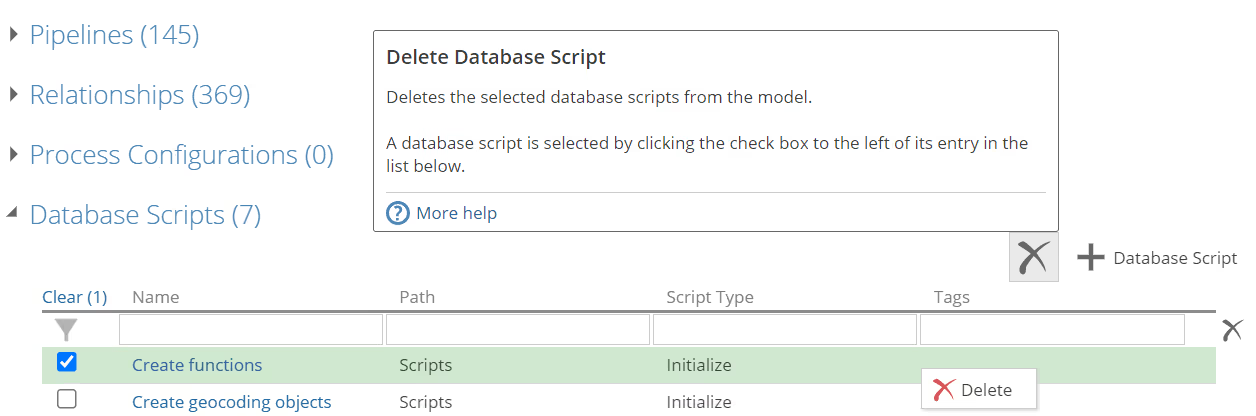
- Click the Delete button (X) at the top of the list, or right-click the script and select Delete.
Settings
To edit a script, select it from the list. You can then define its settings and activate it by using the Enabled check box.
-
Select from the Script Type drop-down list, one of the following options:
-
Initialize - The script will be executed during warehouse publishing, before data migration. These types of scripts are run immediately before views and tables are created for pipelines. For example, a script might be used to create a stored procedure or function which is to be later used in a SQL step or calculation in a pipeline.
-
Process - The script will be executed during warehouse processing (after data migration), but before the cube is processed. These typed of scripts are run at the same time as pipelines are processed (e.g. a script used to populate a warehouse table from a specific external source table).
The precise run order of pipelines and scripts is determined by the Uses Pipelines and Uses Database Scripts settings in each script, and the Uses Database Scripts property in each pipeline.
noteThe run order of scripts can be viewed during processing in the Status area of a model's Properties panel.
- Verify that you are defining a Process type script.
importantIf pipelines are added to a Process script, and the type is changed to Initialize, the specified pipelines are still listed, but the dependency is ignored. The same occurs if pipelines are drag-dropped into the text box. You will not see a list of selectable pipelines for Initialize scripts.
-
Begin typing the name of the pipeline you want to add, or click + in the right part of the corresponding text box. A list of matching, selectable pipelines appears.
-
Select the pipeline from the list to add it to the text box.

- If the database script modifies the warehouse table for a particular pipeline, right-click a pipeline in the text box and select Script Modifies Pipeline. An icon is added to the pipeline.

The specified pipeline will show the current database script in the Used By entry of the pipeline's Properties panel (in the Processing Dependencies area). You can clear this setting by right-clicking the pipeline again and selecting Clear Script Modifies Pipeline.
notePipelines marked as being modified by the current database script must create a warehouse table. This behavior is controlled using the Create Warehouse Table setting on the pipeline's Properties panel (in the Database area).
- Repeat this process until all desired pipelines are added.
noteThe current database script cannot depend on a database script of a different type (as determined using the Script Type setting).
-
Begin typing the name of the script you want to add, or click **+**in the right part of the corresponding text box. A list of matching scripts appears.
-
Select the script from the list. The script is added to the text box.

- Repeat this process until all desired scripts are added.
-
-
Process scripts. Specify pipelines used by this script via the Uses Pipelines setting.
-
Specify other database scripts used by the script via the Uses Database Scripts setting. These scripts are those that must be executed before the current script is executed during model processing.
-
If you want to have the script's SQL appear in the Data Hub application log file, click Show in Log check box.
The application log file that is generated when you process a model always includes the name of each script that runs as well as its output, regardless of the state of this check box. If your script is large, you should leave Show in Log box as cleared (unchecked) to avoid making the log file too verbose.
Process scripts and script dependencies
Database scripts
You can process an individual database script using the Process Database Script button on the script's Properties panel.

This option only processes the affected pipelines, measure groups and dimensions. The corresponding model and cube are not processed.
If you have added a database script to the Process screen (or to the Properties panel), but you decide that you don't want to process it, you can remove it using the small "x" that appears when you hover over the script's entry in the corresponding text box.
Add modules
You can add modules (tags) to a database script via the resource properties (as with other resources).

Once you assign a tag to a script, the tag's name is listed in the Modules column of the Database Scripts list (on the model screen). In the following example, the Finance tag has been added to the first script.

Specify dependent scripts
When a database script is specified in a pipeline, the pipeline cannot be processed until the script has run. This dependency is specified using the Uses Database Scripts pipeline property (in the Processing Dependencies area).
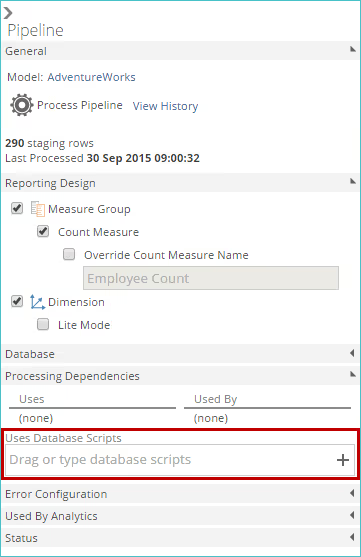
The exact moment of script execution in the overall process depends on the individual script's Type setting.
Process specific database scripts
You can process individual database scripts or groups of scripts, instead of processing all database scripts when an entire model is processed.
With database scripts, only affected measure groups and dimensions are processed, as opposed to the entire cube. This behavior increases the overall speed of script processing.
Individual database scripts can be processed directly from the script's tab or directly on the Process screen.
Database scripts that match the following criteria cannot be specified using the above methods.
- The script has not been enabled.
- The script is of type Initialize, as these types of scripts always run when the model is processed. Specify individual Process type scripts, as desired.
Appendix
SQL "GO" batch separator
You can use the GO command to separate batches of SQL commands in database scripts. The GO command executes all the SQL statements in the current batch. A batch is defined as all the SQL commands since the previous GO command, or since the start of the script if this is the first GO command in the script.
The GO command is particularly useful for defining multiple functions for later use in the model and for ensuring that later parts of a script will run even if an earlier part fails.
Database scripts are defined on the Database Scripts list on the model screen. The example shows three separate batches, each terminated with GO.

When GO is used, a separate entry for each executed batch of SQL commands appears in the Status area of the Properties panel when the model is processed. The example below shows the process status panel for the model containing the SQL shown above.
