Manage history data
When a pipeline has a History step, Data Hub stores snapshots of your data over time in a separate history table in the warehouse. This table grows with every process, and over months or years it can cause your warehouse to become larger than your licensed warehouse limit.
This article walks through how to reduce the size of your history data using the Clear history feature on a pipeline.
Before you start
History data is temporal; once deleted, it cannot be recovered from the source. Data Hub automatically backs up history tables daily. Contact support to restore history if needed.
For critical historical data, it may be advisable to contact support before proceeding to confirm the operation will be reversible.
Clear history data
-
Open the pipeline that contains the History step.
-
Expand the Pipeline design panel and scroll to the Database section.
-
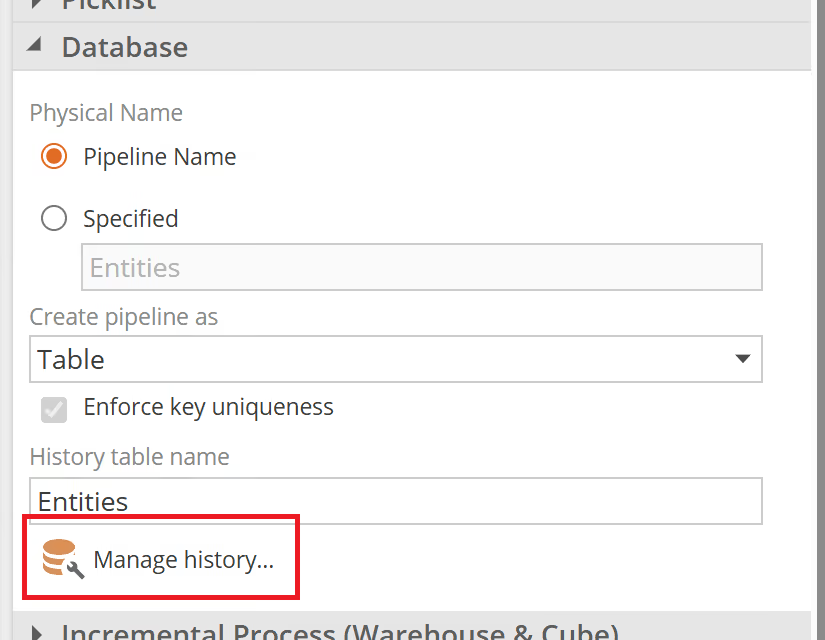
Click Manage history.
-
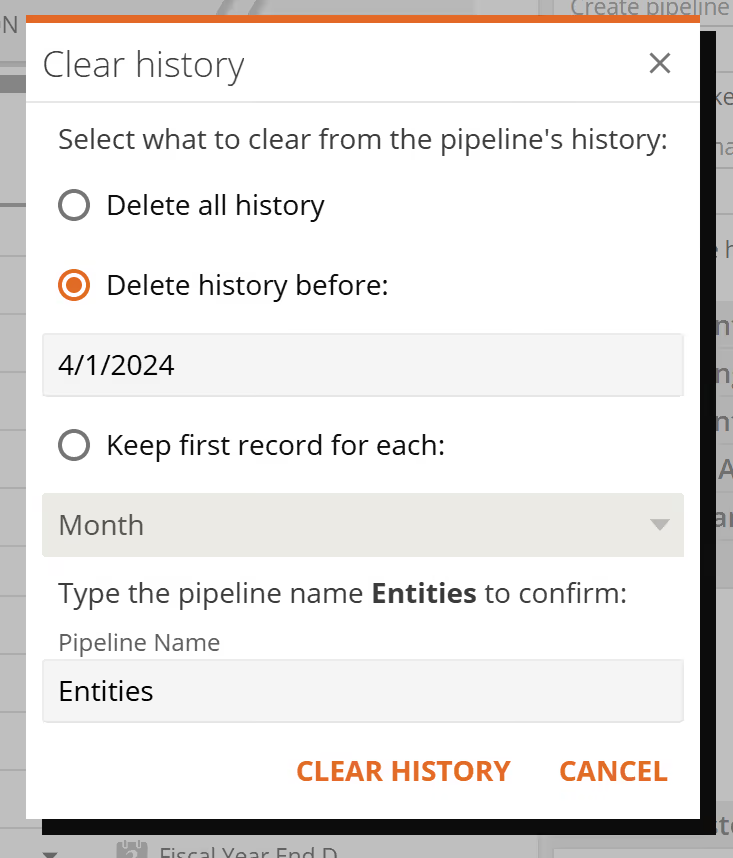
Select the clearing option that suits your situation (see below).
-
In the Manage History dialog, type the pipeline's name to confirm. This safeguard prevents you from accidentally deleting the wrong pipeline's history.
-
Click Clear. The status of the clearing operation can be seen in the task pane.

Clearing options
The Manage History dialog offers three options. Choose the one that best fits your goal.
Delete all history
Removes every record from the history table. Use this when you want to completely reset the pipeline's history.
After clearing, the next time the pipeline is processed, Data Hub will begin capturing history from scratch.
Delete history before a date
Removes all records from before a date you specify. Use this to trim old data while keeping recent history intact.
This is the best option when your history table has grown too large but you still need recent data for reporting. For example, if you only report on the last two years, you can delete everything before that window.
Keep last record for each period
Removes intermediate records and keeps only the last revision for each key within each time period (day or calendar month). Use this to reduce table size while still preserving a periodic snapshot of your data.
This is useful when you do not need to see every individual change, but still want to retain a representative record for each period. For example, keeping the last record per month gives you a month-end snapshot of each tracked entity.