Display attribute values as links
Attributes that represent entities accessible through other webpages, such as records in the source ERP, can be displayed as clickable links in reports. Set the attribute's reporting type to Link, then configure a link template that defines the URL.
A link template can contain tokens enclosed in braces (for example https://example.com/customers/{id}). When the link is built, each token is replaced with the value of its mapped column or parameter.
Make an attribute a link
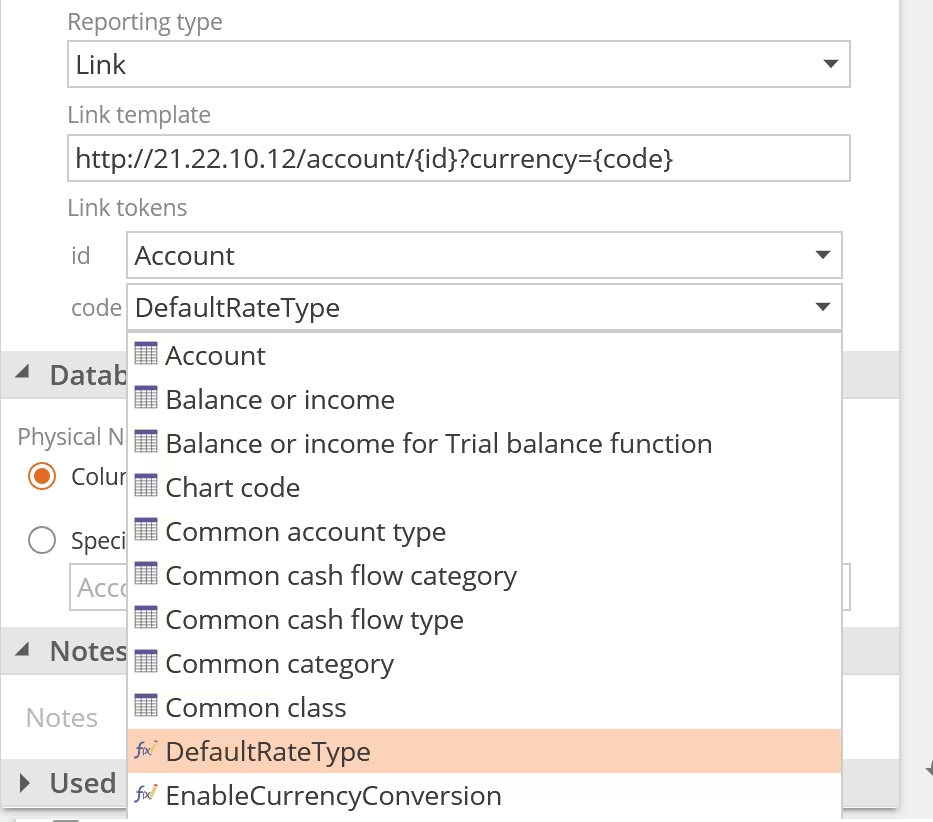
- On the model resource screen, select the pipeline containing the column.
- Click the column to select it. The column information appears in the Properties panel.
- In the Properties panel, make sure Attribute is enabled for the column.
- Set Reporting Type to Link.
- Under Link template, enter the URL template (for example
https://example.com/{customerId}). - Under Link tokens, map each token in the template to an attribute column or model parameter. The selected source supplies the value that replaces the token when the link is built.
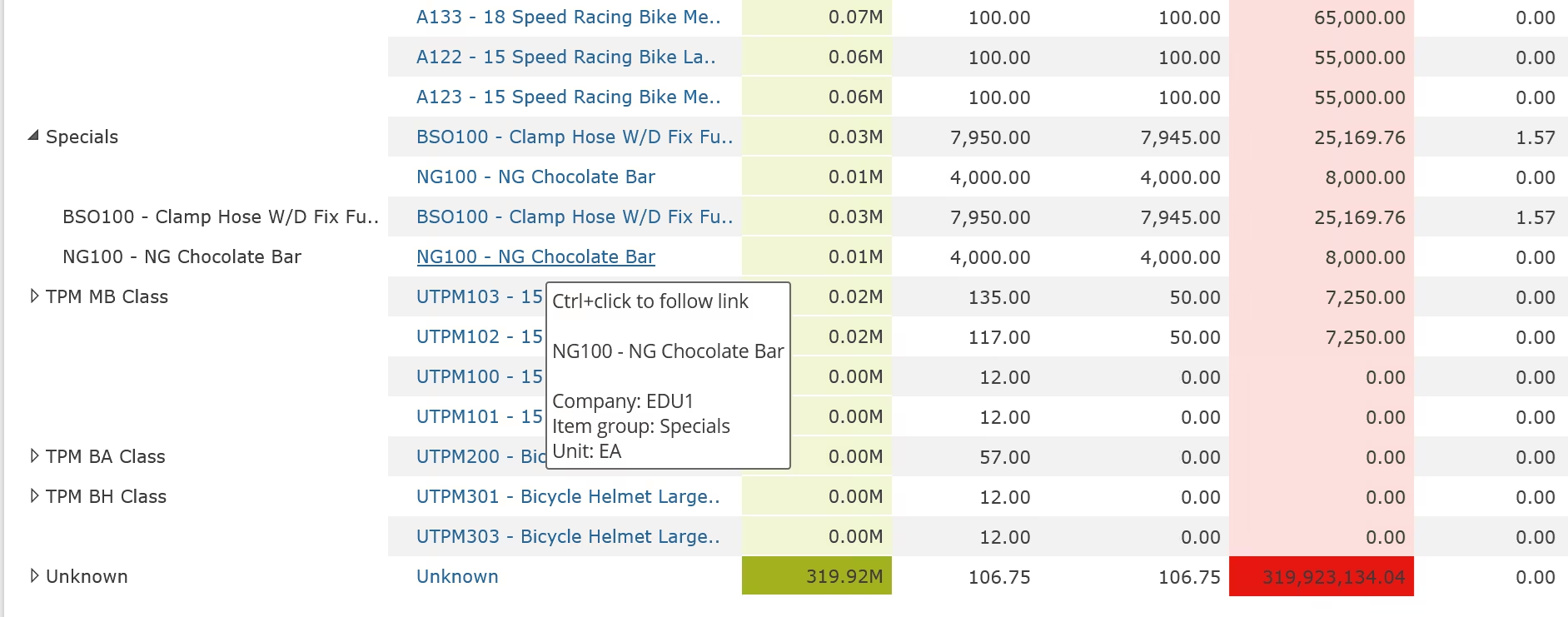
After publishing and processing, the attribute's values now appear as links wherever the attribute is shown in a report. See Header links for more information about how link attributes are displayed in tables.
Requirements for token sources
Each token must be mapped to an attribute column or model parameter. Mapped columns must be available as member properties wherever the link attribute appears in a report:
- The column must be enabled as an attribute.
- The column must be a property of the link attribute. Columns are properties of the pipeline's key attribute by default, so if your link attribute is the key (the most common case), mapped columns work without further setup. If the link attribute is not the key, set each mapped column's Property of to the link attribute. See Attribute columns.
- A mapped parameter must exist in the model. Parameters do not need a property relationship to the link attribute.
(Advanced) Using a parameter for a link template
Instead of entering a URL directly, the link template can come from a model parameter. This is used occasionally for legacy models and prebuilt solutions, and we do not recommend configuring this yourself.
The syntax for this is #ParameterName#.
The parameter reference must be the entire value of Link template. Do not add a URL, token, or other text before or after #ParameterName#.